Back to module list
IgonScan AI
Automatic supplier invoice processing using Artificial Intelligence (Claude / ChatGPT).
What it does
IgonScan fully automates supplier invoice entry in Dolibarr.
How it works
- Go to Accounting → Supplier Invoices → IgonScan
- Upload or drag invoices in PDF, PNG or JPG from the "Upload invoices" tab
- AI processes each invoice and extracts structured data (supplier, lines, amounts)
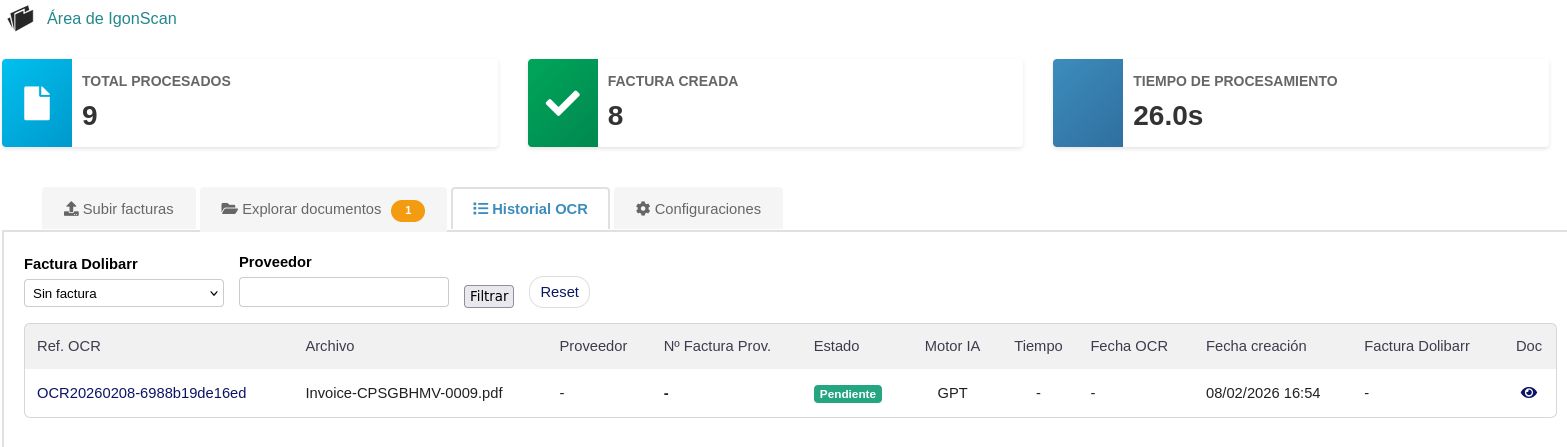
- The OCR History shows the status of each processing with real-time statistics
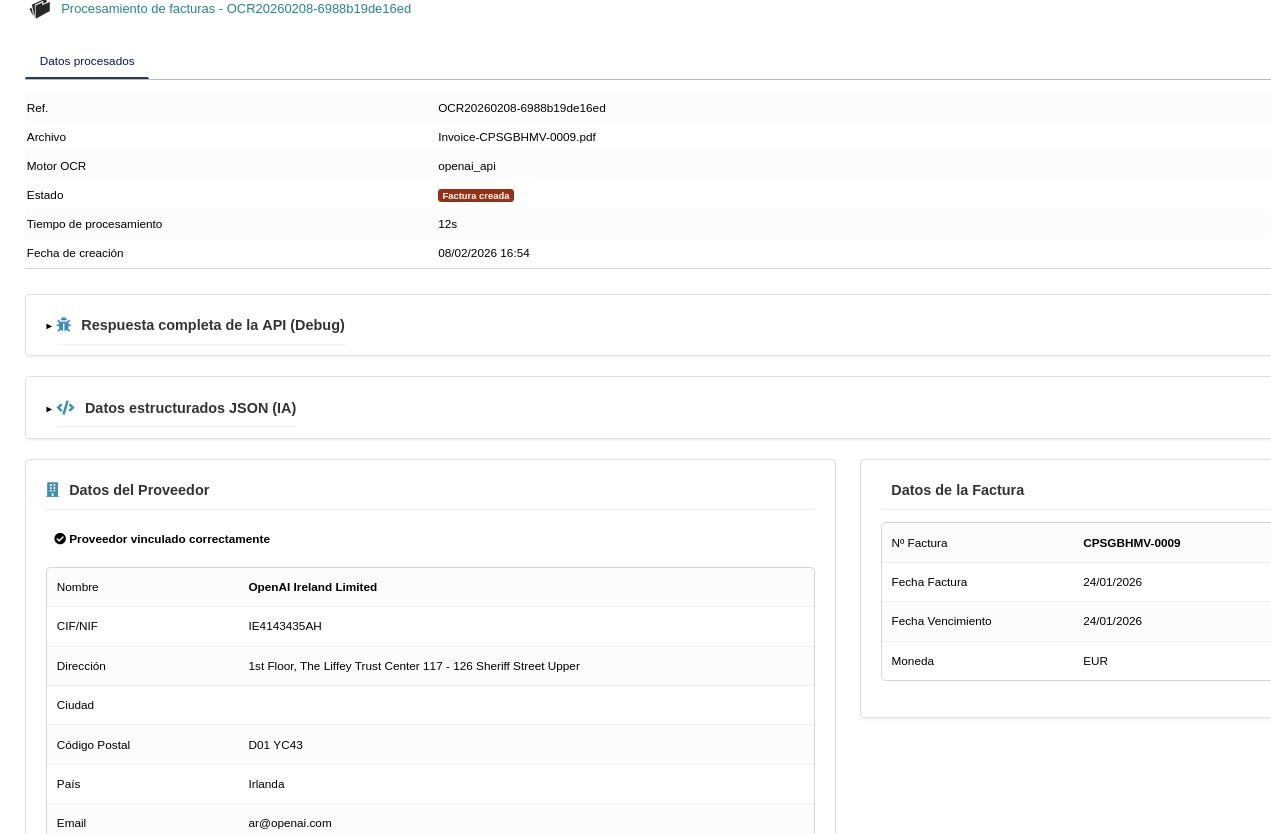
- Review extracted data: detected supplier (name, tax ID, address, country) and invoice data (number, date, due date, currency)
- If the supplier is not found, you can create it or link an existing one directly
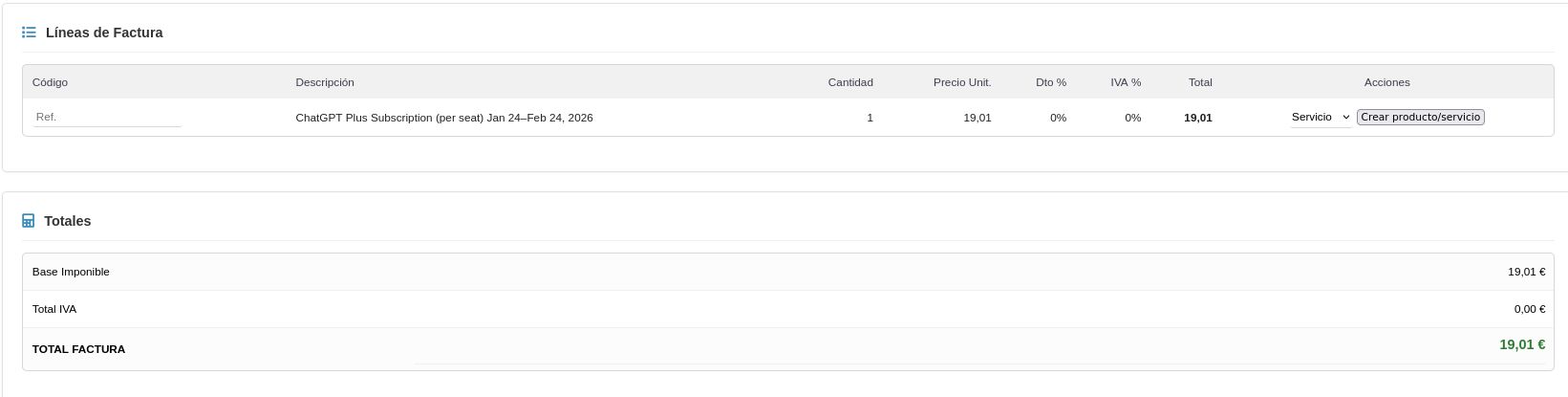
- Verify invoice lines with description, quantity, unit price and VAT
- If a product or service does not exist, you can create the reference on the spot
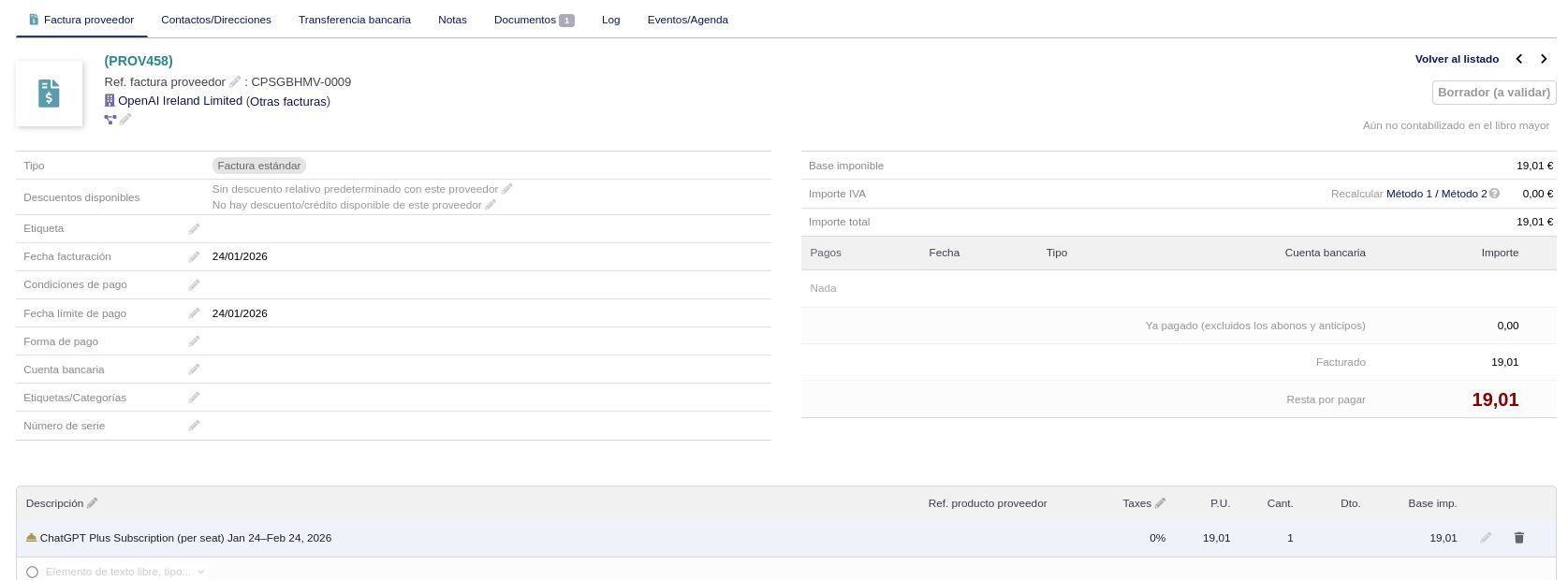
- A draft invoice is generated in Dolibarr with all data filled in
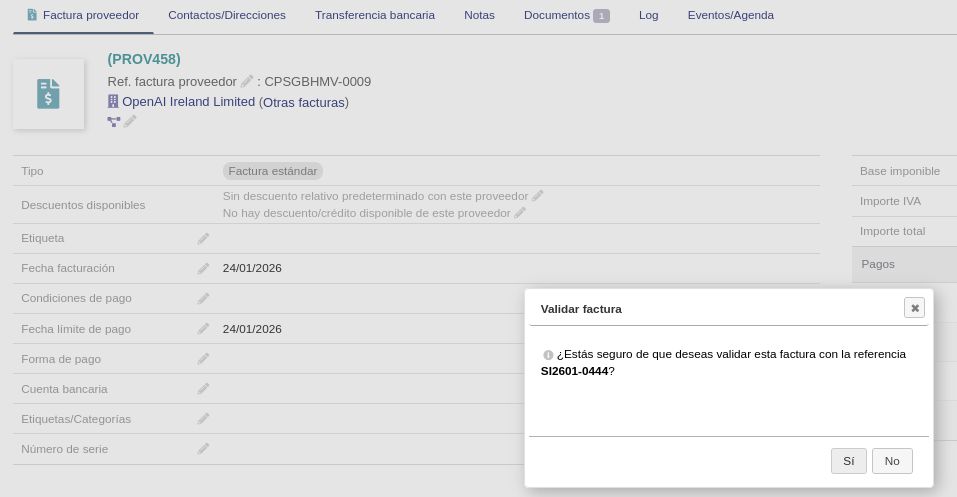
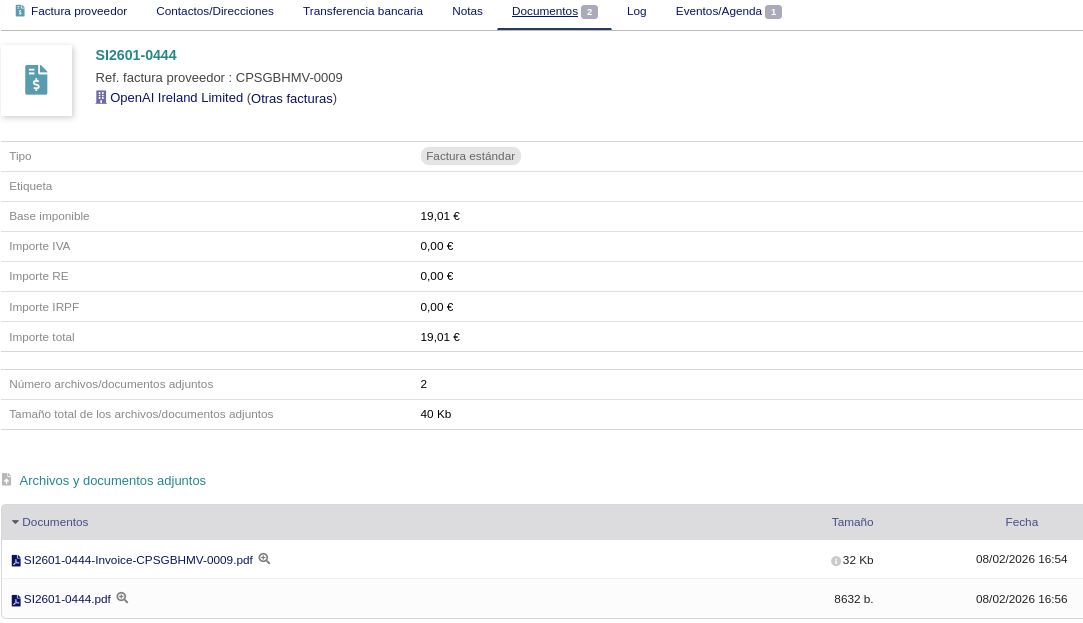
- Validate the invoice and the original document is automatically attached to Documents
Benefits
- Eliminates manual invoice data entry
- Reduces human errors in transcription
- Batch processing of multiple invoices
- Compatible with Claude API and OpenAI GPT-4
- Duplicate detection by supplier reference
- Automatic creation of suppliers and products/services
- Original PDF is attached to the validated invoice
- Processing statistics: total processed, invoices created and time
Technical sheet
Extracts all accounting data from PDF invoices and images, creates or identifies suppliers and items, generates draft invoices ready for validation and automatically attaches the original document.
Base configuration
- Configure the chosen API (Claude or ChatGPT) and securely store the key.
- Define monitored directories for bulk ingestion and the drag-and-drop mailbox.
- Enable automatic detection and creation of suppliers and products.
- Configure duplicate alerts and mandatory manual validation.
Variables and parameters
- AI model to use and output temperature.
- Supplier and item matching threshold.
- Working directory and automatic deletion after import.
- Monitored mode vs. manual upload and maximum files per batch.
Recommended flow
- Upload invoices from the "Upload invoices" tab or monitor a directory.
- AI processes each file and extracts supplier, lines and amounts.
- OCR History shows the status and statistics of each processing.
- Review supplier data: name, tax ID, address. Create or link if needed.
- Review invoice data: number, date, due date and currency.
- Verify detail lines: description, quantity, price, VAT. Create products if they don't exist.
- A draft invoice is generated in Dolibarr with all information.
- Validate the invoice — the original PDF is automatically attached to Documents.
Screenshots
Try IgonScan in our demo
Access the demo
Log in with demo.200 / demo.200 or demo.201 / demo.201